Kubernetes has made managing container images seamless with its multitude of features such as built-in horizontal scalability, service discovery, and so much more. Kubernetes provides a rich and open framework to which an operator can take advantage of when managing their software development lifecycle. This extensibility and freedom sometimes makes it difficult to provide a single solution to everyone’s needs — such as how to update a live running application without disrupting the user experience.
Imagine a scenario where you have hundreds of users a day who are posting messages to your new social media application. You have a new feature that you want to roll out that will allow people to rate messages. The testing team wants to run a final smoke test1 to ensure everything works as expected before releasing the feature to production. This is where a technique such as blue-green deployments shine.
Blue-Green Deployments
So what exactly is a blue-green deployment? It’s a technique for delivering software where two identical instances of an application run simultaneously, but production traffic is only routed to one of them.
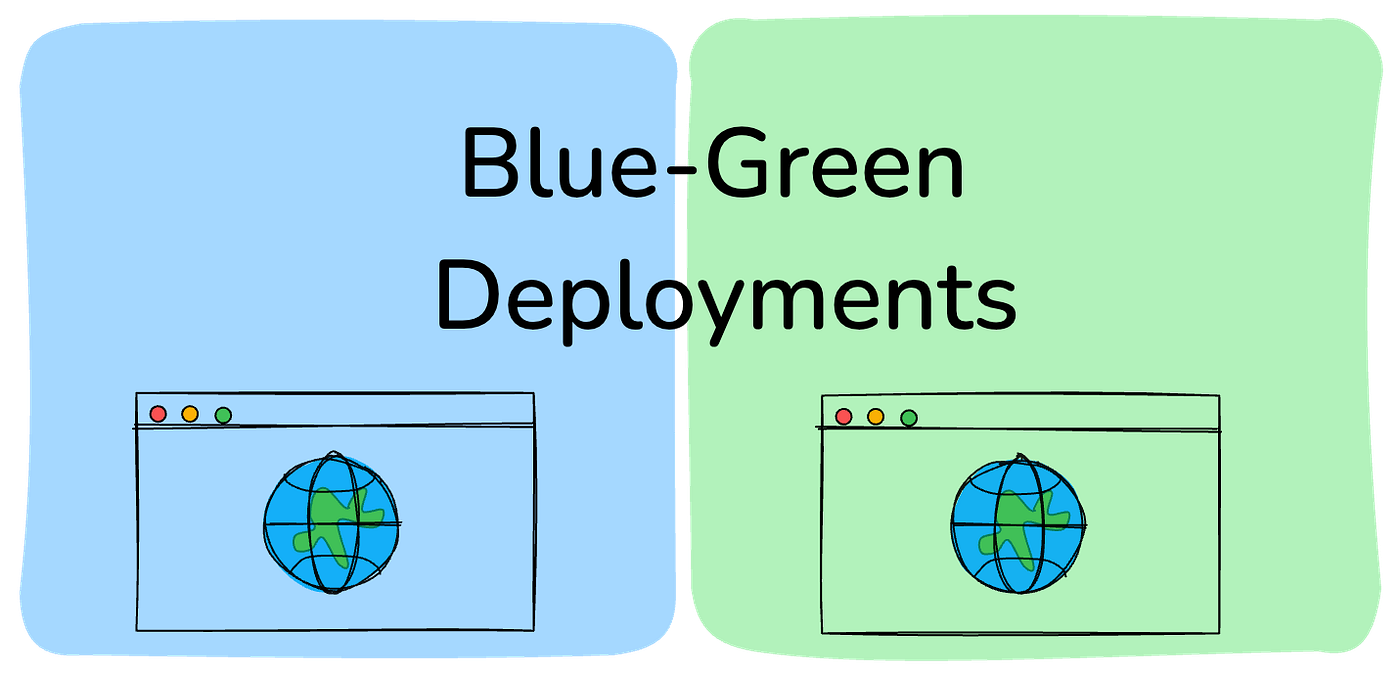
In our hypothetical scenario, we have the current social media application without the rating feature — version 1.0 (blue) — running live at http://example.ganba.local. We deploy the new version 2.0 (green), with the rating feature, at http://internal.example.ganba.local — a URL only accessible to teams on the local network. When the testing team validates the new version, the operations team switches traffic from blue to green. At that point, rolling back is as simple as switching back. Once the team is confident, the old resources can be safely removed.
Implementation
The approach I’m sharing uses Kubernetes namespaces. While there’s another popular approach using labels on deployments, namespaces are safer — they offer resource isolation and prevent scenarios like duplicate resource names or unintentionally overwriting existing resources.
We’ll use Nginx as our test application. Any Kubernetes hosting solution works — minikube or a managed cluster from a cloud provider.
1. Install Ingress-Nginx
We’ll use ingress-nginx as our ingress controller. If you have Helm installed:
helm upgrade --install ingress-nginx ingress-nginx \
  --repo https://kubernetes.github.io/ingress-nginx \
  --namespace ingress-nginx --create-namespace
The following examples use the hostname ganba.local, a custom DNS entry under /etc/hosts.
2. Create the Namespaces
Set up three namespaces for the blue-green pipeline:
kubectl create namespace nginx-blue
kubectl create namespace nginx-green
kubectl create namespace bg-switch
nginx-blue— hosts version 1.0nginx-green— hosts version 2.0bg-switch— the traffic controller, routing between blue and green
3. Create the Traffic Controller Components
Create two components in bg-switch: an ingress and a service.
ingress.yaml
apiVersion: networking.k8s.io/v1
kind: Ingress
metadata:
  name: blue-green-ingress
  namespace: bg-switch
spec:
  ingressClassName: nginx
  rules:
    - host: "example.ganba.local"
      http:
        paths:
          - pathType: Prefix
            path: "/"
            backend:
              service:
                name: bg-switch-service
                port:
                  number: 80
kubectl apply -f ingress.yaml -n bg-switch
service-switch.yaml
apiVersion: v1
kind: Service
metadata:
  name: bg-switch-service
  namespace: bg-switch
spec:
  type: ExternalName
  externalName: nginx-blue-svc.nginx-blue.svc.cluster.local
kubectl apply -f service-switch.yaml -n bg-switch
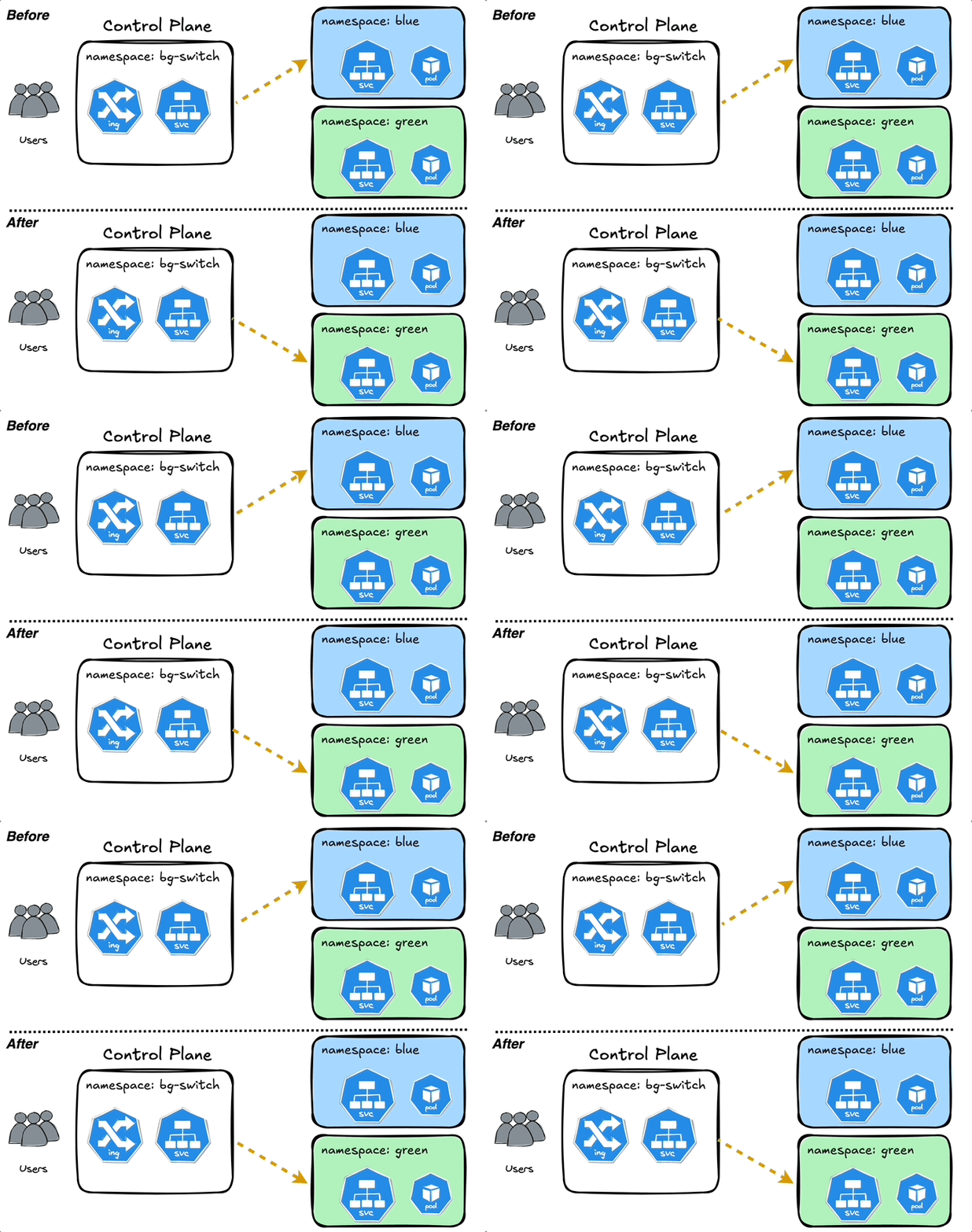
The key here is type: ExternalName — the secret sauce of this implementation. It maps to a DNS name, and since Kubernetes provides internal DNS names in the form service-name.namespace.svc.cluster.local, we can redirect traffic to services in other namespaces entirely.
This service-switch.yaml is where you perform the blue-green switch. To flip to green, change externalName and re-apply:
spec:
  type: ExternalName
  externalName: nginx-green-svc.nginx-green.svc.cluster.local
4. Create the Blue and Green Applications
blue-app.yaml
---
apiVersion: v1
kind: Service
metadata:
  name: nginx-blue-svc
  namespace: nginx-blue
spec:
  selector:
    app: nginx
  ports:
    - protocol: TCP
      port: 80
      targetPort: 80
---
apiVersion: v1
kind: ConfigMap
metadata:
  name: nginx-blue-config
  namespace: nginx-blue
data:
  index.html: |
    <!DOCTYPE html>
    <html>
    <head>
      <title>Blue Deployment</title>
      <style>body { background-color: blue; }</style>
    </head>
    <body><h1>Blue Deployment</h1></body>
    </html>
---
apiVersion: apps/v1
kind: Deployment
metadata:
  name: nginx-blue-deployment
  namespace: nginx-blue
spec:
  replicas: 1
  selector:
    matchLabels:
      app: nginx
  template:
    metadata:
      labels:
        app: nginx
    spec:
      containers:
        - name: nginx
          image: nginx:latest
          ports:
            - containerPort: 80
          volumeMounts:
            - name: nginx-config
              mountPath: /usr/share/nginx/html/index.html
              subPath: index.html
      volumes:
        - name: nginx-config
          configMap:
            name: nginx-blue-config
kubectl apply -f blue-app.yaml -n nginx-blue
Verify it locally:
kubectl port-forward svc/nginx-blue-svc 8000:80 -n nginx-blue
Open http://localhost:8000 to see the blue deployment.
green-app.yaml follows the same structure with green labels and a green background. Apply it:
kubectl apply -f green-app.yaml -n nginx-green
kubectl port-forward svc/nginx-green-svc 8001:80 -n nginx-green
5. The Switch in Action
Verify everything is running:
kubectl get all -n nginx-blue
kubectl get all -n nginx-green
kubectl get ingress -n bg-switch
kubectl get svc -n bg-switch
With the service pointing to nginx-blue, http://example.ganba.local serves the blue deployment. To switch to green:
kubectl patch service bg-switch-service -n bg-switch \
  --type=merge \
  -p '{"spec":{"externalName":"nginx-green-svc.nginx-green.svc.cluster.local"}}'
Navigate to http://example.ganba.local and you’re now on the green deployment. To roll back, patch it back to blue. No downtime, no drama.
The full code for this post is available on GitHub.
I challenge you to take this further — automate the switch through a UI or custom scripts.