The social media application you’ve just created has hit critical mass with thousands of user interactions per second. You’ve gathered your users’ feedback and want to introduce a new feature that will drive engagement. However, you’re cautious about not disrupting active users with potential downtime if the new feature causes an overload on your servers.
Currently, you have a Kubernetes cluster with the Ingress-Nginx controller and a blue-green deployment setup. You can switch 100% of traffic to the new version immediately — but you’d rather divert only a small portion first and monitor the effects before fully committing. Fortunately, there’s a common solution to this: the canary deployment.
Canary Deployments
What do birds have to do with deploying software? In the days when coal mining was prevalent, miners would send canaries deep into the mines to detect early signs of carbon monoxide before fully venturing forth. In software development, a similar technique can be applied to network traffic: a small population of users act as the canaries and venture onto the new software version to stress-test the system.
The new version is typically accompanied by a monitoring tool such as Prometheus or OpenTelemetry, which reports back metrics like error rates and network latency. If the metrics meet predetermined standards, the operator incrementally shifts more traffic toward the new version.
In our hypothetical deployment, we have three namespaces: bg-switch, blue, and green. The bg-switch namespace is the single point of entry where a software operator can divert traffic from the old deployment (blue) to the new one (green). You can read more about the namespaced blue-green approach in Kubernetes Namespaces: The Secret Weapon for Zero-Risk Blue-Green Deployments.
The issue with the pure blue-green implementation is that it exposes 100% of traffic to the new version the moment you switch. Canary deployments limit that exposure area while still giving you the option to do a zero-to-a-hundred traffic switch if desired.
Implementation
We’ll implement canary deployments using Ingress-Nginx annotations combined with Kubernetes namespace segregation. The test application is Nginx. Any Kubernetes hosting solution works — k3d or a managed cluster from a cloud provider.
1. Install Ingress-Nginx
helm upgrade --install ingress-nginx ingress-nginx \
  --repo https://kubernetes.github.io/ingress-nginx \
  --namespace ingress-nginx --create-namespace
The following examples use the hostname canary.localhost, a custom DNS entry under /etc/hosts.
2. Create the Namespaces
kubectl create namespace nginx-blue
kubectl create namespace nginx-green
kubectl create namespace canary-bg-switch
nginx-green— hosts version 1.0 (current production)nginx-blue— hosts version 2.0 (the canary)canary-bg-switch— traffic controller, tunes the split between blue and green
3. Create the Canary Traffic Controller Components
We create three components in canary-bg-switch: two ingresses and two services.
green-ingress.yaml — the default ingress; all traffic flows here initially
apiVersion: networking.k8s.io/v1
kind: Ingress
metadata:
  name: canary-green-ingress
  namespace: canary-bg-switch
spec:
  ingressClassName: nginx
  rules:
    - host: "canary.localhost"
      http:
        paths:
          - pathType: Prefix
            path: "/"
            backend:
              service:
                name: green-bg-switch-service
                port:
                  number: 80
kubectl apply -f green-ingress.yaml -n canary-bg-switch
blue-ingress.yaml — the canary ingress; starts at 0% traffic
apiVersion: networking.k8s.io/v1
kind: Ingress
metadata:
  name: canary-blue-ingress
  namespace: canary-bg-switch
  annotations:
    nginx.ingress.kubernetes.io/canary: "true"
    nginx.ingress.kubernetes.io/canary-weight: "0"
spec:
  ingressClassName: nginx
  rules:
    - host: "canary.localhost"
      http:
        paths:
          - pathType: Prefix
            path: "/"
            backend:
              service:
                name: blue-bg-switch-service
                port:
                  number: 80
The two annotations are the key:
nginx.ingress.kubernetes.io/canary: "true"— marks this as the canary ingressnginx.ingress.kubernetes.io/canary-weight: "0"— sets 0% of traffic to blue; 100% stays on green
kubectl apply -f blue-ingress.yaml -n canary-bg-switch
green-service.yaml and blue-service.yaml — ExternalName services that route across namespaces
apiVersion: v1
kind: Service
metadata:
  name: green-bg-switch-service
  namespace: canary-bg-switch
spec:
  type: ExternalName
  externalName: nginx-green-svc.nginx-green.svc.cluster.local
apiVersion: v1
kind: Service
metadata:
  name: blue-bg-switch-service
  namespace: canary-bg-switch
spec:
  type: ExternalName
  externalName: nginx-blue-svc.nginx-blue.svc.cluster.local
ExternalName acts as a CNAME, using Kubernetes-native DNS (service-name.namespace.svc.cluster.local) to route traffic across namespaces. Note: you cannot reference a cross-namespace DNS name directly inside an ingress backend.service.name — that’s why this intermediate service is necessary.
kubectl apply -f green-service.yaml -n canary-bg-switch
kubectl apply -f blue-service.yaml -n canary-bg-switch
4. Create the Blue and Green Applications
blue-app.yaml
apiVersion: v1
kind: Service
metadata:
  name: nginx-blue-svc
  namespace: nginx-blue
spec:
  selector:
    app: nginx
  ports:
    - protocol: TCP
      port: 80
      targetPort: 80
---
apiVersion: v1
kind: ConfigMap
metadata:
  name: nginx-blue-config
  namespace: nginx-blue
data:
  index.html: |
    <!DOCTYPE html>
    <html>
    <head>
      <title>Blue Deployment</title>
      <style>body { background-color: blue; }</style>
    </head>
    <body><h1>Blue Deployment</h1></body>
    </html>
---
apiVersion: apps/v1
kind: Deployment
metadata:
  name: nginx-blue-deployment
  namespace: nginx-blue
spec:
  replicas: 1
  selector:
    matchLabels:
      app: nginx
  template:
    metadata:
      labels:
        app: nginx
    spec:
      containers:
        - name: nginx
          image: nginx:latest
          ports:
            - containerPort: 80
          volumeMounts:
            - name: nginx-config
              mountPath: /usr/share/nginx/html/index.html
              subPath: index.html
      volumes:
        - name: nginx-config
          configMap:
            name: nginx-blue-config
kubectl apply -f blue-app.yaml -n nginx-blue
kubectl port-forward svc/nginx-blue-svc 8000:80 -n nginx-blue
green-app.yaml is identical except for green labels and background color:
kubectl apply -f green-app.yaml -n nginx-green
kubectl port-forward svc/nginx-green-svc 8001:80 -n nginx-green
5. Canary Traffic Switch in Action
Verify all components are running:
kubectl get all -n nginx-green
kubectl get all -n nginx-blue
kubectl get ingress -n canary-bg-switch
kubectl get service -n canary-bg-switch
With canary-weight: "0", 100% of traffic at http://canary.localhost goes to the green deployment. To observe the split in real time, use this monitoring script:
monitor.sh
#!/bin/bash
TOTAL=1000
counter=0
blue=0
green=0

while [ $counter -lt $TOTAL ]; do
  response=$(curl -s http://canary.localhost)

  if [[ $response == *"Blue Deployment"* ]]; then
    ((blue++))
  elif [[ $response == *"Green Deployment"* ]]; then
    ((green++))
  fi

  ((counter++))
  echo -ne "Blue: $blue ($(( blue * 100 / counter ))%), Green: $green ($(( green * 100 / counter ))%), Total: $counter\r"
  sleep 0.1
done

echo -e "\nFinal split:"
echo "Blue: $blue ($(( blue * 100 / TOTAL ))%)"
echo "Green: $green ($(( green * 100 / TOTAL ))%)"
chmod +x ./monitor.sh && ./monitor.sh
At 0% canary weight, the output will show:
Blue: 0 (0%), Green: 80 (100%), Total: 80
Now shift 20% of traffic to the blue canary:
kubectl patch ingress canary-blue-ingress -n canary-bg-switch \
  --type=json \
  -p '[{"op": "replace", "path": "/metadata/annotations/nginx.ingress.kubernetes.io~1canary-weight", "value": "20"}]'
The monitor will converge toward the 80/20 split:
Blue: 9 (20%), Green: 36 (80%), Total: 45
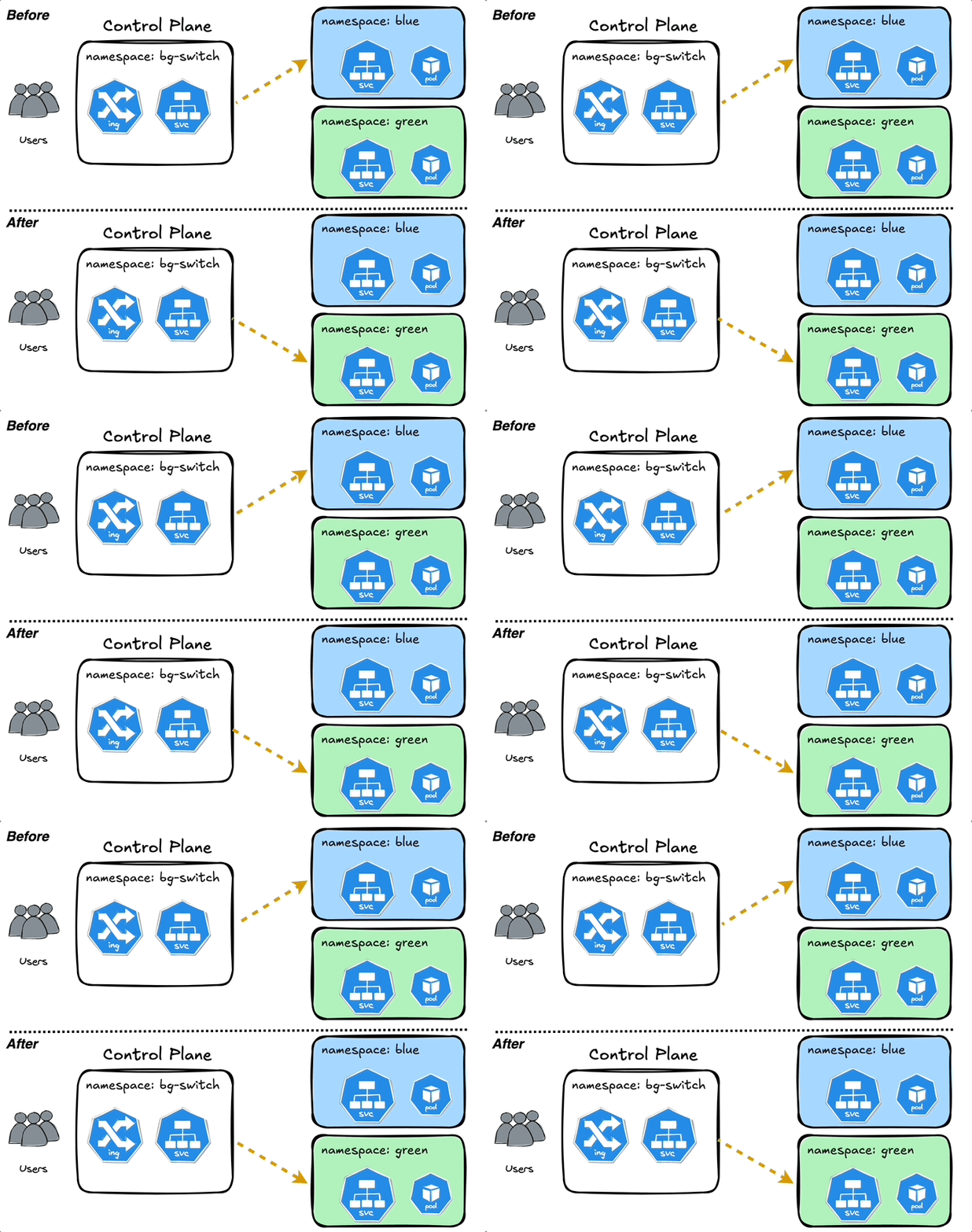
Keep incrementally raising the canary weight as your metrics hold. If something goes wrong, patch it back to "0" and you’re fully back on green.
The full code for this post is available on GitHub.